

If you’re starting your WordPress journey in 2026, you’re in the perfect place. The right tips can help you avoid costly mistakes and set your site up for long-term success. Whether you’re building a business website, a personal blog, or a growing online shop, knowing the basics of security, speed, and customisation is essential.
This guide is packed with the most up-to-date advice gathered from top UK web development experts, drawing on DCP’s 20-year legacy supporting British businesses.
We break down everything from essential setup tricks to powerful performance boosters and must-have security measures. Each tip comes with real-world insight, helping you create a stunning, secure, and high-performing WordPress website-no jargon, no headaches, just what you need to get ahead. Let’s make your website stand out in 2026!

Essential WordPress Setup and Customisation for Beginners
Setting up your WordPress website design correctly matters more than ever in 2026. From your very first click, the choices you make can have a big impact on both your site’s look and how smoothly it runs down the line. Picking the right hosting package, selecting a theme that fits your vision, and understanding the basics of plugins lay a solid foundation for everything that follows.
This section will introduce you to the key initial decisions: choosing reliable hosting, finding beginner-friendly themes, exploring page builders, and customising your site with plugins and simple tweaks. It’s natural to feel overwhelmed by the options at first, but focus on building steady, learning as you go. Getting these fundamentals sorted helps ensure your website is easy to manage, fast, and ready to grow alongside your needs.
We’ll take you through what each of these major steps involves-so you know why they’re important and what to expect-helping you avoid hassles later. There’s no need for a technical background here: just a willingness to learn, a bit of patience, and the confidence that you’re starting with best practice in mind. Let’s lay the groundwork for your WordPress success.
How to Choose Reliable WordPress Hosting and Install Your Website
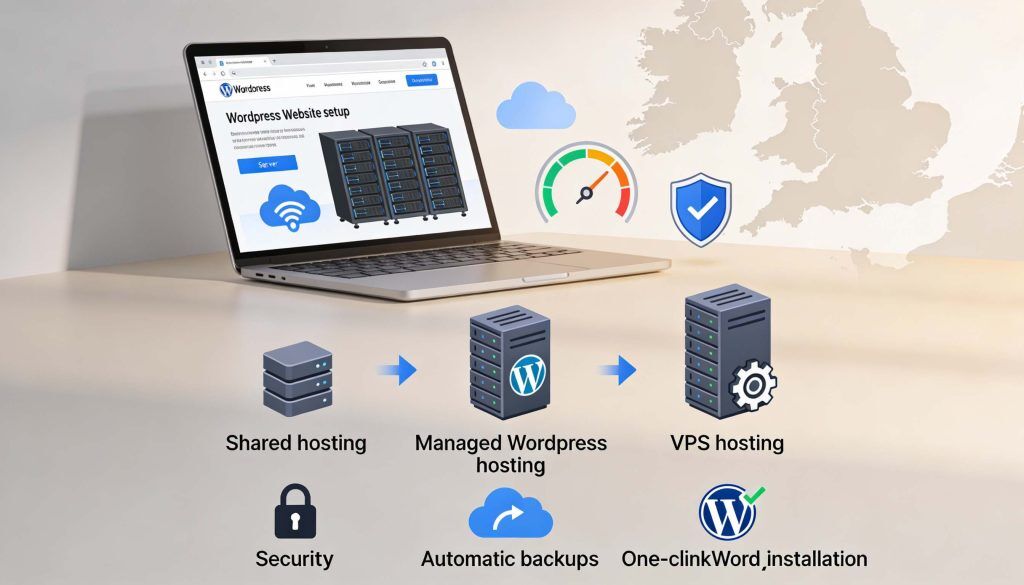
- Select a hosting provider with excellent uptime (99.9%+), fast load times, UK-based data centres, and responsive support. These factors keep your site online and quick for your visitors.
- Compare hosting types:
- Shared hosting is affordable and suitable for simple personal or small business sites.
- Managed hosting offers WordPress-specific support, better performance, and less maintenance hassle.
- VPS hosting gives you more control and resources for growing sites.
- Look for extras like SSL certificates, simple backups, and automatic security updates, these make your site safer from day one.
- Install WordPress using your host’s one-click installer, or do it manually if you prefer full control. Most providers have guides, but the automated route is fastest for beginners.
- Factor in your budget and future plans. Choose a provider that allows easy upgrades as you grow; don’t be lured by ultra-cheap deals that skimp on support.
Selecting and Customising Beginner-Friendly WordPress Themes
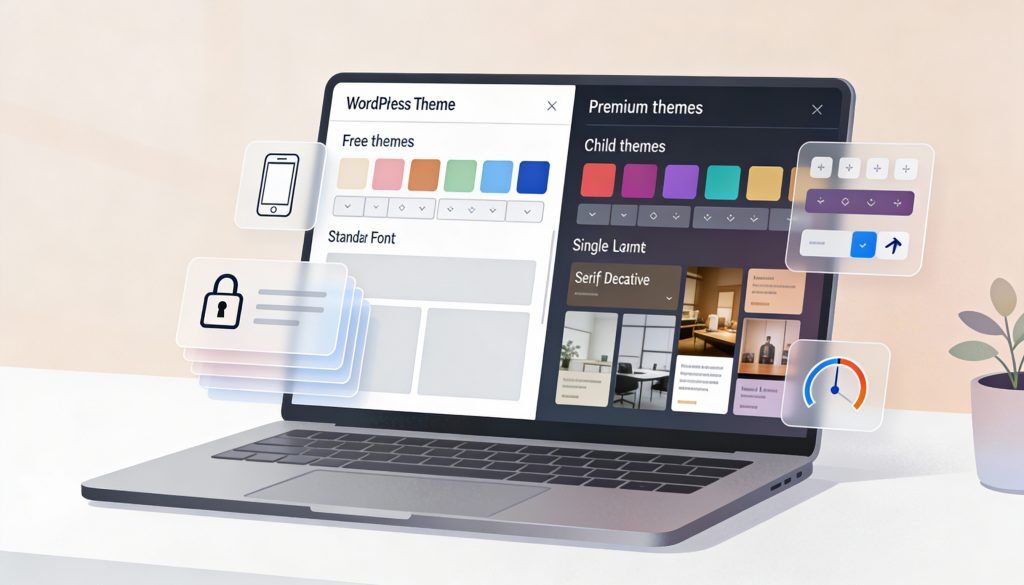
- Go for a responsive, fast-loading theme: Pick themes that are mobile-ready and designed to load quickly. This ensures your site looks brilliant and performs well on any device.
- Free vs Paid Themes: Free themes can look great for basic needs, but premium (paid) themes often offer better support and regular updates. Make sure any theme you choose is updated frequently for security and reliability.
- Customisation Features: Choose a theme that gives you easy options for changing colours, fonts, and page layouts-without needing to code. Themes compatible with visual builders like Elementor or WPBakery make tweaking your site’s design much simpler.
- Child Theme Safety: Always use a child theme if you want to make custom CSS or design changes. This keeps your tweaks safe if the main theme updates, so you never lose your work.
- Brand Consistency: Select a theme that matches your brand style and goals. Whether you want bold and modern, or classic and calm, there’s a theme for you, look for design elements that reflect your business’s personality.
Getting Started with WordPress Page Builders for Easy Design
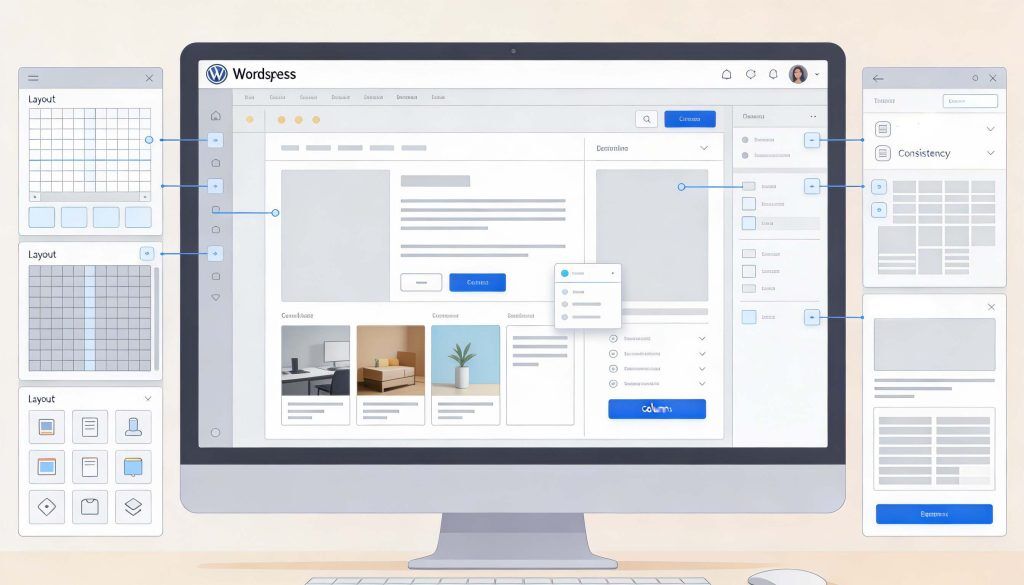
- Choose a user-friendly page builder: Tools such as Elementor, Beaver Builder, and WPBakery make it possible to design rich, professional pages with simple drag-and-drop controls-no coding needed.
- Enjoy visual editing: See changes as you make them. Page builders let you add text, images, buttons, and columns in real-time, so you know exactly how your site will look.
- Use ready-made templates: Start with pre-built layouts for popular pages (like About or Contact) to save time and look polished from the start.
- Keep consistency in mind: Experiment with layout and colour, but stick to your chosen theme’s palette and style for a cohesive look. Rely on the page builder for structure, and use the WordPress editor for regular posts.
- Know when to use builders: Use a page builder for complex or custom landing pages, but keep regular blog posts and simple updates in the classic editor for speed.
Simple WordPress Customisation with Plugins and Minimal Code
- Start with essential plugins: Look for reputable plugins with good reviews and regular updates. Install them from the official WordPress directory to add features like contact forms, SEO tools, or security in just a few clicks.
- Add functionality without risk: Always test new plugins one at a time. After installing and activating, check that your site works as expected. Delete any plugins you don’t use to avoid clutter.
- Customise with small code snippets: For small tweaks (like hiding post dates), safe PHP or CSS snippets can be added using a code snippets plugin, never alter your core theme or plugin files directly.
- Avoid plugin overload: Too many plugins can slow your site and cause conflicts. Start with essentials and only add new ones when needed.
- Regularly update: Keep your plugins updated and back up your site before making changes to minimise risks.
Optimising WordPress Performance and Site Speed
In the fast-paced world, no one wants to wait for a website to load. Every second counts, with both visitors and search engines rewarding sites that are quick and smooth. Optimising your WordPress performance is about more than just good looks, site speed directly influences user happiness, conversion rates, and where you appear in Google results.
We’ll introduce you to crucial strategies for boosting speed, such as compressing images, enabling caching, and using Content Delivery Networks (CDNs) to reach global audiences. You’ll also learn how to keep tabs on your site’s health so you can spot and resolve issues before they impact your business. Getting performance right means your visitors stick around longer and your business stands out from the competition.
Whether you’re running a simple blog or a busy small business website, these tips are practical and future-proof, designed to keep your WordPress site performing brilliantly for UK users and beyond.
Image Optimisation Tips to Improve Site Speed
- Compress your images: Before uploading, use tools like TinyPNG or plugins such as Smush to reduce file size without affecting quality. Smaller images mean faster load times.
- Choose the right file types: Use JPEG for photos and PNG for graphics with transparency. Modern formats like WebP offer an even better balance of quality and speed in 2026.
- Enable lazy loading: Install a plugin to make images or videos load only when users scroll to them, reducing initial page load time and saving bandwidth.
- Resize your images: Upload images at the exact size needed for your design. Oversized images waste space and slow your site unnecessarily.
- Optimise for all devices: Use responsive image settings or plugins, so photos look sharp on mobiles, tablets, and desktops, no manual cropping required.
Best Practices for Caching and Using Content Delivery Networks
- Enable a caching plugin: Tools like WP Super Cache or W3 Total Cache store pages in memory to serve them faster to visitors. This reduces load on your server and improves speed.
- Consider a CDN: Content delivery networks (such as Cloudflare or KeyCDN) deliver images and files from servers close to your user, boosting speed for both UK and international visitors.
- Troubleshoot carefully: Clear your cache after any design change, and check CDN settings if pages aren’t updating as expected. Most issues resolve with a cache clear or plugin update.
Monitoring and Maintaining WordPress Performance
- Track key metrics: Use tools like GTmetrix or PageSpeed Insights to regularly check site speed, mobile performance, and uptime. Identify trends before they become problems.
- Routine maintenance: Update WordPress core, plugins, and themes monthly, plus clear out unneeded post revisions or images quarterly for best performance.
- Get support when needed: If issues persist or your site feels slow despite your efforts, don’t hesitate to ask a UK-based professional for help.
Strengthening WordPress Security and Access Control
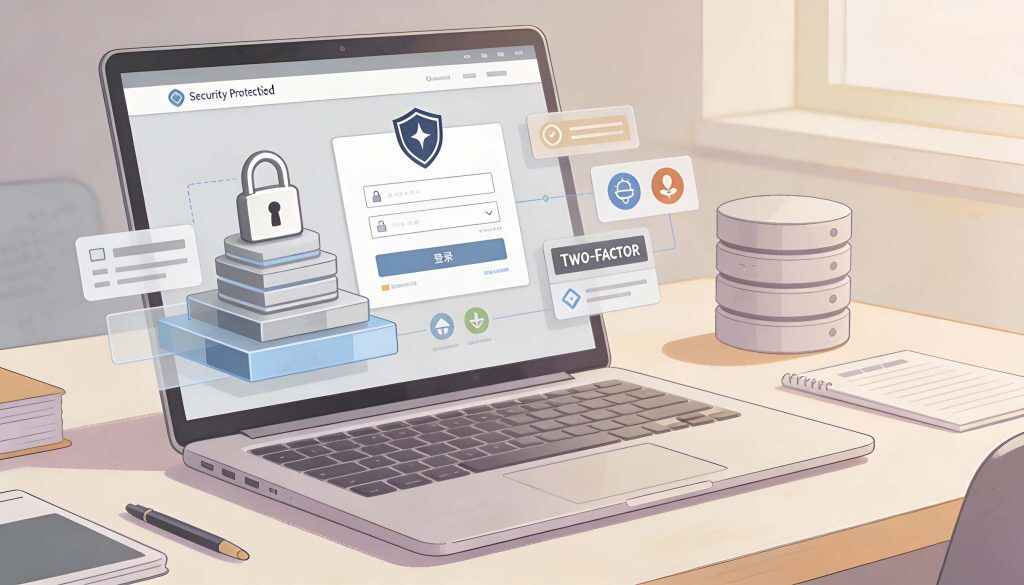
Security is a must for every WordPress website, no matter if you’re running a personal project or a fully-fledged business. Threats are more sophisticated than ever, but so are the tools to keep your site safe. Taking a few smart precautions now can spare you from costly downtime, lost data, or even reputational damage later on.
This section introduces the core steps every beginner should take: securing your login, enabling extra protection like two-factor authentication, and automating regular site backups. You’ll also get a primer on keeping your WordPress database secure and your user permissions under control. The good news? Most of these best practices are simple to put in place, especially with reliable plugins and beginner-friendly guidance made for UK business websites.
Think of WordPress security as an ongoing mindset, not just a one-off job. By acting now, you’re protecting your hard work, your users, and your reputation in the digital world.
Essential WordPress Login Security for Beginners
- Change your login URL: Default addresses like /wp-admin are common targets for hackers. Use a plugin to customise your login link and make it less obvious.
- Set strong, unique passwords: Use a mix of letters, numbers, and symbols or a password manager. Avoid names, birthdays, or common words.
- Limit login attempts: Install a security plugin that locks out users after a certain number of failed logins. This blocks automated brute-force attacks aimed at guessing your password.
- Enable an SSL certificate: This encrypts data between your site and visitors, preventing anyone from snooping on login details. Most good hosts offer SSL for free or at low cost.
- Keep administrator accounts to a minimum: Only give admin rights to people you trust and remove any extra, unused accounts.
Enable Two-Factor Authentication for Extra Protection
Two-factor authentication (2FA) adds a crucial extra layer of security to your WordPress login. With 2FA, after entering your password, you must also confirm your identity using a code from your phone or an authentication app. This means even if someone discovers your password, they’ll still need access to your second device to log in. Using 2FA is standard practice for serious security. You can enable it using free or premium plugins, following simple setup instructions-all designed to keep your site and users safe from online threats.
How to Backup WordPress and Run Security Scans Automatically
- Automated backups: Use plugins like UpdraftPlus or Jetpack to schedule daily or weekly backups, stored safely in the cloud or your email. This means you can quickly restore your site in case anything goes wrong.
- Manual backup option: Occasional manual backups provide a safety net before big updates or changes. With one click, you can save your site and database.
- Regular malware scans: Security plugins like Wordfence scan your site automatically for hidden malware or suspicious files, flagging issues before they become headaches.
- Easy scheduling: Most security and backup plugins let you create set-and-forget schedules, so you never have to remember to run scans or backups yourself.
Managing Your WordPress Database for Top Security
- Schedule regular database backups: Automated tools protect your content and settings from accidental deletions or hackers. Store copies securely off-site, never just on the same server.
- Optimise your database with a plugin: Cleaning out old post revisions, spam comments, and unused data keeps the database lean and fast. Plugins like WP-Optimize can do this in a few clicks.
- Set strong database credentials: Just like your password, your database username and password should be unique and complex to stop hackers in their tracks.
- Remove unused tables and plugins: Old plugins can leave behind tables that may create clutter or security holes. Only keep what you’re actively using.
- Seek professional help if unsure: For complicated cleanup, migrations, or database errors, it’s wise to consult a WordPress expert rather than risk critical data.
Mastering SEO and Content Visibility
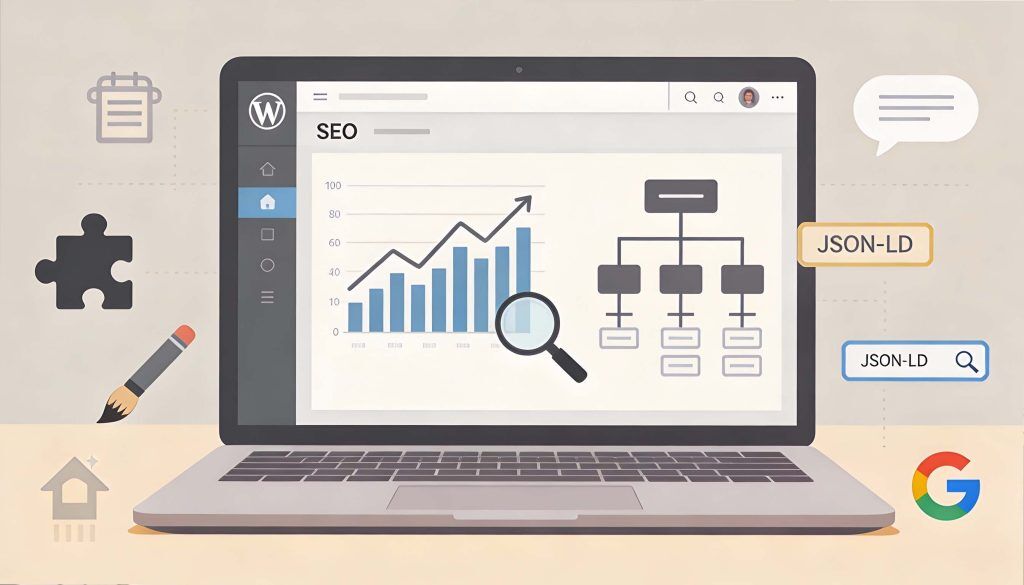
What’s the point of a brilliant WordPress site if no one sees it? Mastering search engine optimisation (SEO) is your way to stand out and draw more visitors. SEO isn’t just about keywords-it’s about user experience, content quality, and making sure your site is visible in Google’s ever-changing landscape.
This section covers the essentials: setting up easy-to-use SEO plugins, connecting vital Google tools, improving your content, and using the latest techniques like schema markup and sitemaps. These steps help search engines discover and rank your website, giving you the best chance to reach your UK audience.
Don’t worry if you’re not a technical expert. Each topic will be broken down into practical, non-jargon steps. By following this advice, you’ll have a WordPress site that not only looks good, it gets found by the right people, too.
Setting Up WordPress SEO Plugins and Google Analytics Integration
- Install a leading SEO plugin: Go for beginner-friendly options like Yoast SEO or Rank Math. These plugins offer clear guidance, checklists, and automated tips for on-page SEO.
- Configure basic settings: Set your site title and meta descriptions, enable XML sitemaps, and let the plugin handle technical SEO necessities.
- Connect Google Analytics and Search Console: Use their respective plugins or manual methods to track how many people visit, which pages they like, and what needs improvement.
- Check for updates: Make sure your plugins are up-to-date to take advantage of new SEO features and changing Google algorithms.
- Review your results: Regularly check Google Analytics and Search Console for trends, higher traffic, improved rankings, or problem areas to address.
Optimising Content Quality, Alt Tags, and Internal Links
- Write for people first: Produce genuinely useful, well-structured content, clear language, helpful info, and direct answers to your visitors’ questions.
- Keyword optimisation: Naturally weave in key phrases your UK audience might search for, avoiding overstuffing or repetitive language.
- Add descriptive alt tags: Every image should include alt text explaining what it shows. This boosts both SEO and accessibility for visually impaired users.
- Build internal links: Link to related pages and posts on your site, making it easy for users and search engines to explore your content.
Boosting Visibility with Schema Markup and Sitemaps
- Add schema markup: Use an SEO plugin or schema tool to add structured data (like business info or reviews) so your site stands out in Google with rich results.
- Generate a sitemap: Your SEO plugin can create a sitemap.xml file that lists all your site’s pages, helping search engines find and index content quickly.
- Submit your sitemap to Google: Use Google Search Console to let Google know where your sitemap lives, making sure new pages are discovered faster.
- Stay updated: As you add or change content, your sitemap updates automatically, no need for manual tweaks.
Managing Content, Structure and User Experience
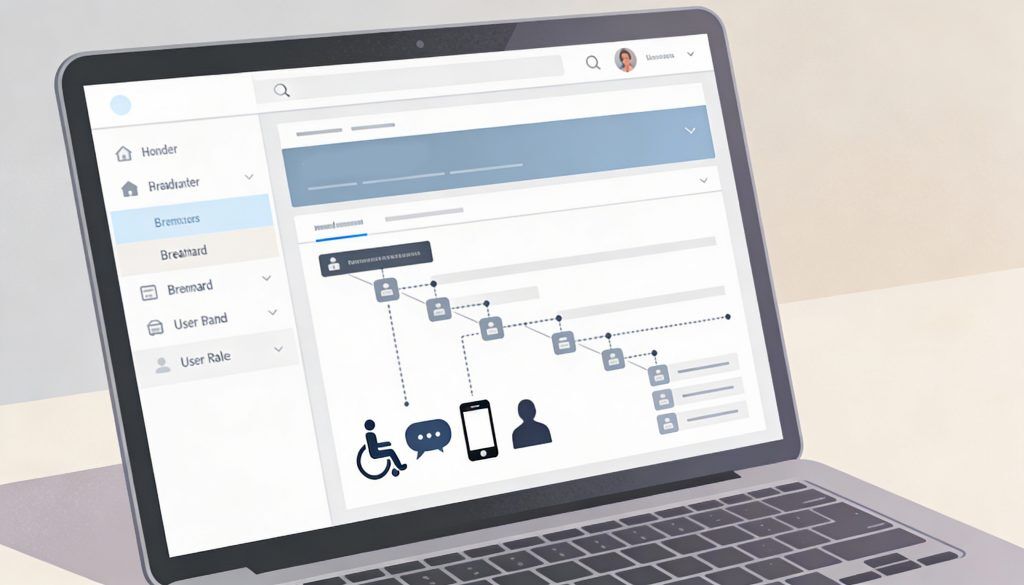
A sleek design and fast speed only go so far if visitors can’t find what they need. Creating a logical site structure and great user experience is essential for anyone setting up their first WordPress website. Well-organised menus and posts help users (and search engines) navigate your content easily, increasing the time people spend on your site-and boosting your chance of turning visitors into customers.
This section unpacks how to map your pages, plan categories, and use features like breadcrumbs for smoother browsing. You’ll also learn why accessibility matters more than ever in 2026, with practical fixes to ensure anyone-including mobile users and those with disabilities-can enjoy your content.
Finally, we’ll cover community features: managing comments and assigning user roles to keep interactions safe and friendly. These basics set the tone for a site that not only looks and works well but draws people back time and again.
Creating a User-Friendly Site Structure and WordPress Breadcrumbs
- Plan your content hierarchy: List out your main pages (Home, About, Services, Blog, Contact) and group similar content into logical categories. Keep navigation simple.
- Use menus wisely: Set up clear, easy-to-find menus at the top and/or footer of your site. Only link to your most important sections-avoid overwhelming visitors with too many choices.
- Add WordPress breadcrumbs: Install a breadcrumbs plugin (like Breadcrumb NavXT or Yoast SEO’s built-in feature). Breadcrumbs show users where they are within your site and make it easy to jump back a step.
- Reduce clutter: Remove outdated pages, keep navigation streamlined, and prioritise user journeys through your content.
- SEO bonus: Logical site structure and breadcrumbs also help search engines understand your site’s content, boosting your ranking.
Improving Accessibility and Mobile Optimisation for Visitors
- Choose an accessible theme: Look for “accessibility-ready” in the theme’s description and test fonts, contrasts, and button clarity.
- Use alt text and descriptive links: Ensure images have alt descriptions and links use meaningful text-this helps screen readers and search engines.
- Optimise for mobiles: Preview your site on various devices. Plugins like WPtouch or built-in theme options often provide one-click mobile support.
- Quick accessibility fixes: Add keyboard navigation, readable font sizes, and colour contrast checks with plugins such as One Click Accessibility.
Managing WordPress Comments and Setting User Roles
- Moderate comments: Turn on moderation to block spam and only approve genuine, relevant discussion. Disable comments entirely for pages where they’re not needed.
- Understand user roles: WordPress has roles from Administrator to Subscriber. Assign Editor or Contributor roles for staff or guest writers; never give admin rights unless absolutely needed.
- Encourage engagement safely: Use anti-spam plugins and set clear comment policies to promote healthy interaction.
- Review permissions regularly: Check who has access and remove users who no longer need roles or admin rights, ensuring security and proper site management.
Advanced Features and Growth Tools for WordPress

Once your WordPress site is up and running, you might be ready to explore growth options for your business or community. Even beginners can unlock powerful tools-like staging environments, e-commerce, and lead capture-that have real potential for expansion. These features, once reserved for professionals, are now easier to add and manage thanks to user-friendly WordPress plugins and services aimed at UK businesses.
This section shows you how to elevate your site with safe testing environments, full online shop capabilities, and integrated social media and email marketing. The focus is on tried-and-tested, growth-oriented add-ons that scale as your website or business grows. You’ll find these next steps approachable, with the reassurance that you’re following best practices from the start.
By the end, you’ll not only have a site that looks the part-but one equipped for bigger opportunities in 2026 and beyond.
Using WordPress Staging Sites and Regular Updates for Safe Changes
A WordPress staging site is a private copy of your website used for safely testing new plugins, themes, or updates before affecting your real site. Many UK hosts offer one-click staging, or you can use a plugin like WP Staging. Running updates-both WordPress core and plugins-is essential for security and bug fixes. Schedule regular updates (ideally monthly) to keep your site secure and avoid issues. Using staging ensures updates and changes don’t cause errors on your live site, keeping downtime and problems at bay.
Adding E-Commerce and Lead Generation to Your WordPress Site
- Install WooCommerce for online shops: This free plugin transforms your site into a full-featured e-commerce store. Add products, set prices, and configure payment gateways such as Stripe or PayPal.
- Pick an e-commerce-friendly theme: Use WooCommerce-compatible themes for a seamless customer journey and professional, mobile-ready look.
- Capture leads with forms: Use plugins like WPForms or Contact Form 7 to create contact, enquiry, or newsletter signup forms, collecting valuable user details.
- Integrate email marketing: Link Mailchimp or similar to your forms for automatic newsletter signup and easy campaign management.
- Start simple, then expand: Begin with a handful of products or services and basic contact forms. As you learn, add advanced features like customer accounts, coupons, or analytics.
Integrating Social Media and Email Marketing for Growth
- Add social sharing buttons: Use plugins like Social Warfare or Sassy Social Share to let users share your pages and posts to Facebook, Twitter, LinkedIn and more.
- Display social feeds: Embed your Instagram or X (formerly Twitter) feeds so your content feels fresh and interactive.
- Email opt-in forms: Plugins (like Mailchimp for WordPress) help visitors sign up for your newsletters directly from any page.
- Automate campaigns: Schedule welcome emails, newsletters, or promotional series, building a lasting audience with minimal manual effort.
Practical WordPress Tips, Tricks and Maintenance Hacks
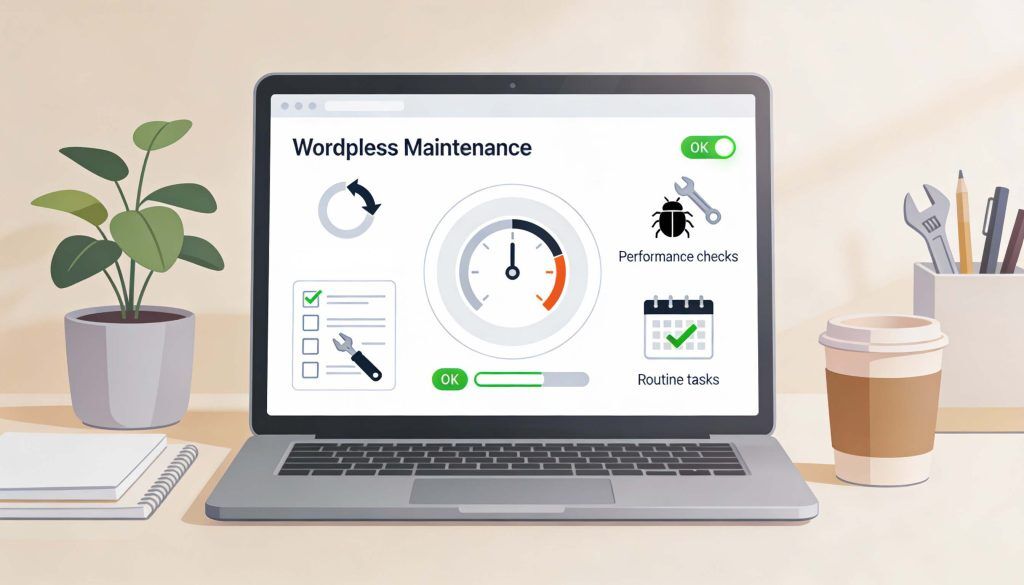
To really make the most of WordPress, it helps to know a few inside tricks and low-effort hacks. These little shortcuts don’t just save you time-they help you avoid common beginner mistakes and keep your website in top shape. Maintenance doesn’t need to be daunting; with a simple plan and regular check-ins, you’ll prevent most issues before they start.
This section collects the most valuable daily tips, troubleshooting advice, and plugin or theme guidelines used by UK web experts. Whether you’re stuck with a stubborn 404 page or need a faster way to publish updates, these pointers are designed for hassle-free site management.
You’ll finish with easy wins for a stable, efficient, and enjoyable WordPress experience, plus the confidence to keep growing without fear of technical hiccups.
Top WordPress Tips, Tricks and Hacks for Daily Efficiency
- Customise your dashboard: Rearrange widgets or hide unused panels so you see what matters when you log in.
- Use the Quick Edit feature: Update post titles, categories, and tags without fully opening each post-perfect for batch changes.
- Media shortcuts: Drag and drop images directly into the editor, and organise folders with a media library plugin for easy management.
- Schedule posts: Plan content in advance to keep your blog or news fresh-even when you’re away.
- Update in bulk: Select multiple plugins or themes from the dashboard and update all at once, saving loads of time.
Fixing Broken Links and Creating Helpful 404 Pages
- Check for broken links regularly: Use plugins like Broken Link Checker or online tools to scan your site for outdated links that frustrate users and hurt SEO.
- Fix and redirect: Edit broken links or use a plugin to set up 301 redirects from old URLs to new ones, preserving your site’s authority and improving user experience.
- Create a custom 404 page: Instead of a generic error, design a helpful page with clear navigation options, a search box, and a light tone. Direct lost visitors back to your main sections.
- Automate alerts: Set notifications for new broken links or repeated 404 errors so you can act before they pile up.
- Test your fixes: After updates, browse your site like a visitor to make sure all links and redirects work properly.
Choosing and Maintaining the Best WordPress Plugins and Themes
- Check reviews and ratings: Only install plugins and themes that have good ratings, lots of active users, and recent updates to ensure reliability.
- Test compatibility: After installing, check your site on mobiles, tablets, and desktops to make sure nothing breaks or clashes.
- Prioritise updates: Keep all plugins and themes up to date for performance and security, set reminders to check monthly.
- Avoid clutter: Delete any plugins or themes you no longer use. This lightens your site and minimises potential problems.
- Know when to upgrade: Consider premium versions of key plugins if you want extra features or priority support as your site grows.
Learning the basics of WordPress is one of the best ways to build a faster, safer and easier to manage website. From choosing the right plugins to improving security, backups and performance, these simple tips can save time and help you avoid common mistakes as your website grows.
If you need expert help creating, improving or maintaining your WordPress website, DCP Web Designers are here to help.
As experienced WordPress Web Designers in London, we create bespoke WordPress websites that are fast, search engine friendly and built to generate enquiries. Contact our team to discuss your next website project.