

Keeping your WordPress website safe from hackers should never feel overwhelming or out of reach. This guide breaks down the most effective security steps, showing you exactly what to do from the basics right up to more advanced protections. Whether you run a small business or manage a busy site, you need to know where the risks are and how to block them before trouble starts.
We focus on clear, practical advice and tested tools you can trust. By the end, you’ll have a solid plan to lock down your website, protect your customer data, and sleep a little easier. No jargon, no nonsense-just the steps that really work to keep your website safe in the real world.
Essential WordPress Security Measures For Every Website Owner
Let’s face it, WordPress is popular, and that makes it a big target for hackers. But you don’t need to be a tech whiz to protect your site-there are straightforward actions every site owner can use. These aren’t complex tricks, just common-sense steps proven to shut out most of the crooks and troublemakers.
Every website, no matter how big or small, benefits from these security basics. It doesn’t matter if you’re running a personal blog, a local business site, or an online shop-taking simple precautions can make the difference between a quiet day and a full-blown emergency.
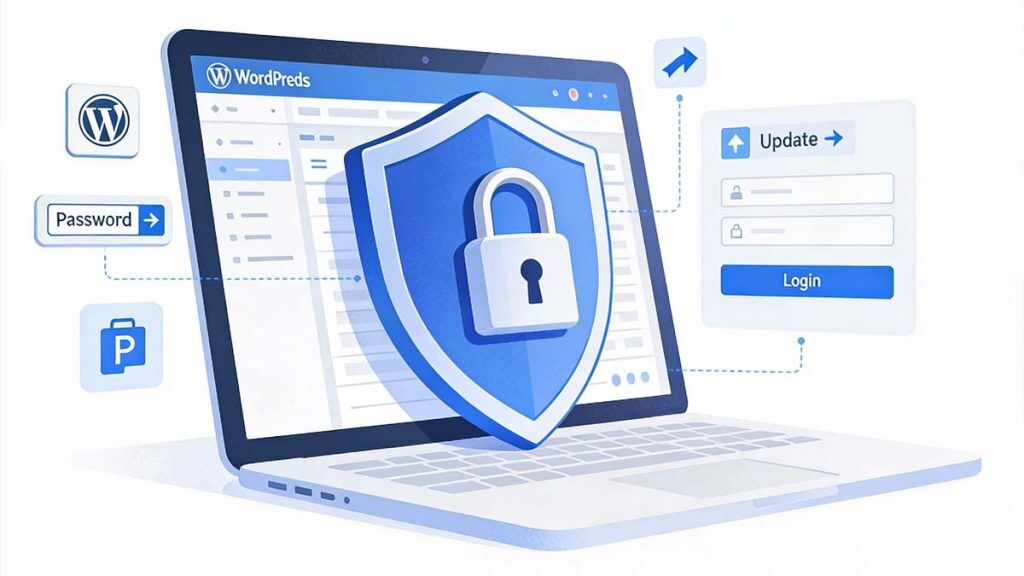
From keeping your website code current, to choosing proper passwords and adding an extra layer of login security, these are your frontline defences. With the right plugin, you can automate protection and reduce hassle even further. Each of the next sections will show you how to put these safeguards in place, step by step, so you don’t get caught out by the usual threats.
Enable Automatic Updates To Keep Your WordPress Version Safe
- Turn on automatic updates: WordPress lets you activate automatic updates for your core software, themes, and plugins. This means your site gets the latest security patches right away, reducing the chance of hackers slipping in through a known hole.
- Check your update settings regularly: Sometimes plugin or theme makers disable automatic updates. Pop into your dashboard every so often to confirm everything is still updating smoothly without needing your attention.
- Test critical updates on a backup or staging site first: If you run a high-traffic business website, consider using a backup version of your site so you can safely check big updates before setting them live.
- Avoid skipping updates: Out-of-date code is the top way hackers get access to WordPress sites. If you set up automatic updates, you plug those security gaps without lifting a finger.
Always Use Strong Passwords And Two Factor Authentication
- Pick a strong password for every user: Use passwords that are long, unique, and hard to guess. Combine letters, numbers, and symbols. Don’t use common phrases or your name.
- Use a password manager: Password managers generate and remember tough passwords for you, so you don’t have to write them down or reuse the same ones everywhere.
- Enable two factor authentication (2FA): This adds a simple extra step at login, like a code sent to your phone. Even if hackers get your password, they’ll hit a brick wall at the next step.
- Require 2FA for all accounts with admin access: Make 2FA standard for anyone who can change your website. There are plenty of WordPress plugins to make setting it up a breeze.
Install Security Plugins For Extra WordPress Protection
- Choose a trusted security plugin: Look for reputable plugins like Wordfence, Sucuri Security, or Jetpack Scan. These scan your site for malware, watch for hacking attempts, and block suspicious activity automatically.
- Activate a firewall: Many security plugins include their own firewalls, adding a barrier between your site and attackers before anything dangerous gets through.
- Use built-in features like malware scanning and file monitoring: Good security plugins will regularly check your site for suspicious changes and let you know right away if something looks off.
- Look for plugins that support 2FA and backups: The best plugins take care of most routine security work, including two factor authentication and backups, with minimal fuss.
Hardening Your WordPress Site Against Hackers
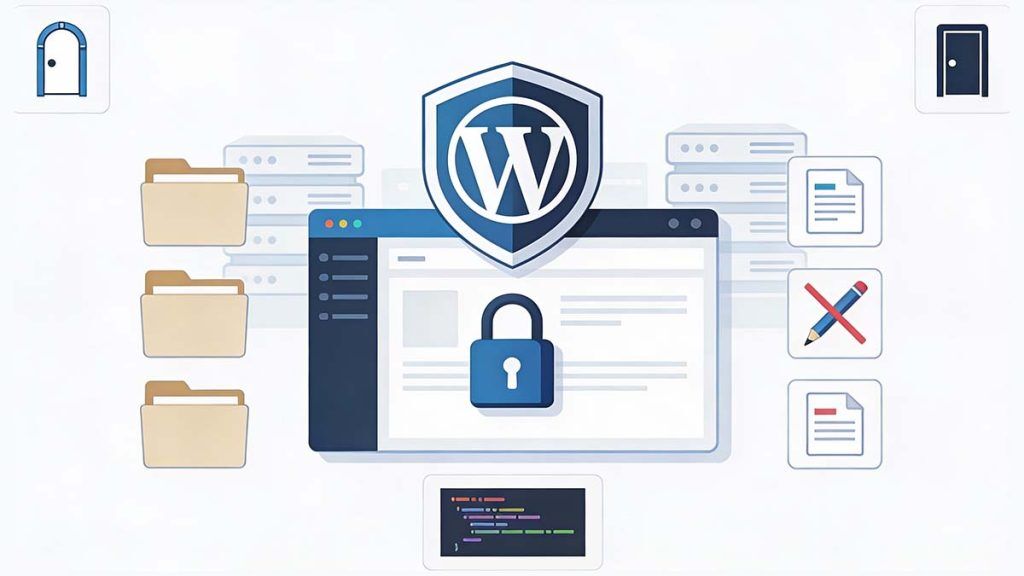
Once you’ve covered the basics, it’s time to go a step further and make your site tougher for hackers to crack. Hardening your WordPress installation means fiddling with certain admin and server settings to take away the easy shortcuts that cyber criminals love.
This stage looks beyond passwords or plugins and focuses on closing off routes that hackers often use to sneak into your website. It’s about stopping attackers before they even have a chance to start causing damage or stealing your data.
If you’re feeling less confident with technical stuff, don’t worry, these instructions use plain language and break things down so most business owners can follow along. These changes are widely recommended for any WordPress site that cares about long-term safety-from small blogs to bigger e-commerce shops. Think of it as bolting the doors and shutting the windows tight, instead of just locking the front door.
Turn Off File Editing And Restrict PHP Execution
- Disable file editing in the dashboard: Go to your wp-config.php file and add define(‘DISALLOW_FILE_EDIT’, true);. This stops anyone using the dashboard to change your core theme or plugin files, even if they break in as an admin.
- Restrict PHP running in sensitive folders: Hackers inject rogue PHP files to hijack your site. To block this, add rules in your .htaccess file (found in your root directory) to prevent PHP code from running in upload folders and similar spots.
- Why it matters: If hackers can’t edit files or run their own code, it’s almost impossible for them to plant malware or backdoors without direct server access.
Change The Default Database Prefix And Admin Usernames
- Change your database prefix from “wp_” to something unique: Automated hacking tools usually try standard prefixes like “wp_”. Switching to “mywp_” or another custom name makes their scripts far less effective.
- Don’t use “admin” as your main username: The default “admin” account is targeted in almost every attack. Delete it, or create a fresh administrator user with a unique name, then remove “admin” completely.
- How this helps: These small adjustments break the majority of automated hacking tools, which just assume you’ve kept your settings at the default.
Block Directory Browsing And Disable XML-RPC
- Block directory browsing: Add Options -Indexes to your .htaccess file. This stops web visitors poking around your folders and seeing the files you keep there, which could reveal sensitive information.
- Disable XML-RPC if you don’t need it: XML-RPC is an old protocol used for remote publishing and connecting apps. Today, most sites don’t need it, but hackers use it for rapid login attempts and DDoS attacks. Turn it off completely with a plugin or in .htaccess.
- Why it matters: These steps close two of the most overlooked doors hackers use. Sensitive files stay hidden, and bots lose one of their favourite WordPress attack methods.
How To Stop Brute Force Attacks On The Login Page
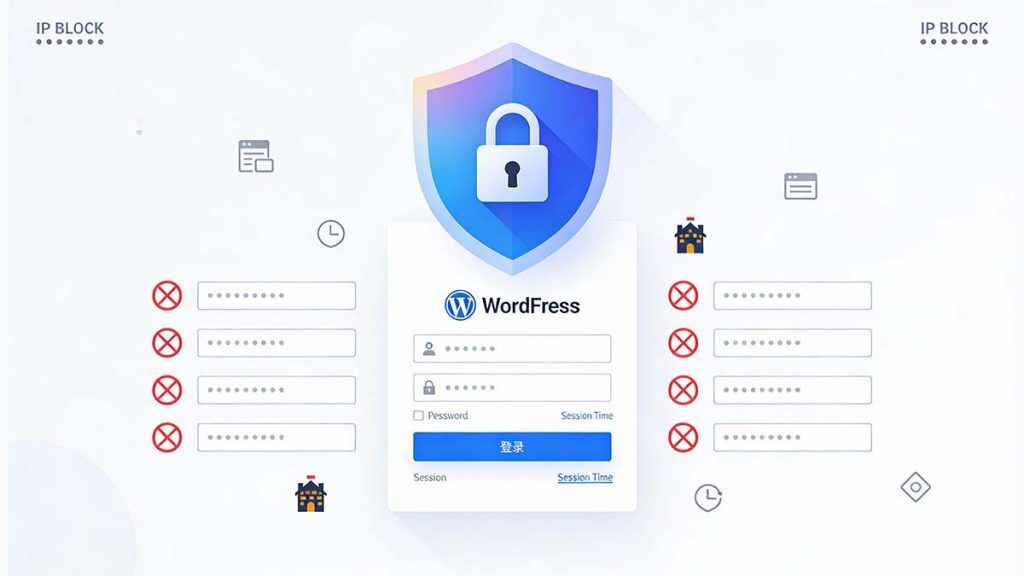
Your WordPress login page is a magnet for hackers. Crooks use bots to try thousands of username and password combinations, hoping to get lucky and break into your site. This is called a brute force attack, and it’s the digital version of someone rattling every door handle all night long.
Thankfully, there are simple defences that pack a punch. You can limit the number of times someone can enter a wrong password, hide your login page from automated scripts, and make sure abandoned accounts log out before trouble kicks off. Each measure you put in place makes it much harder for the bad guys to get through the front door.
Next, you’ll get a closer look at how to make your login page a whole lot safer-without creating extra work or hassle for you and your team. You don’t need to be tech-savvy or spend all day watching over your site, just pick the right protection for your needs and keep things ticking over securely.
Set Up Brute Force Protection And Limit Login Attempts
- Install a login limiter plugin: Plugins like Limit Login Attempts Reloaded or Wordfence monitor how many times a user tries to log in. After a handful of failed attempts, they block that IP address for a set time, stopping bots from guessing passwords all day.
- Track suspicious logins: Some plugins send you alerts if someone tries logging in repeatedly or from unknown countries. That way, you catch unusual activity early.
- Add basic firewall rules: Tools like Sucuri and Jetpack Scan can block entire ranges of IP addresses or countries likely to be the source of automated attacks.
Customise Your Login Page And Automatically Log Out Idle Users
- Change your login page URL: Plugins such as WPS Hide Login let you replace the default “wp-login.php” address with something unique, making it much harder for bots to find your login page.
- Set user session timeouts: Automatically log out users after a period of inactivity. This stops hackers abusing open sessions if someone forgets to sign out on a shared or public computer.
- Extra protection for high-privilege accounts: Use shorter timeouts for admin users, especially if they often work in cafés, shared offices, or other public places.
Monitoring, Backups And Responding To Emergencies
Security doesn’t end once you’ve set your protections. You need systems that warn you right away if something goes wrong, plus a solid backup so you can bounce back fast if you do get hacked. It’s like fitting smoke alarms and keeping a spare key, just in case.
This section covers the essentials of keeping an eye on your website’s health, making regular backups, and what to do when disaster strikes. Staying alert means finding problems before your visitors or Google do, minimising damage and downtime.
If something unexpected does happen, having a plan and the right tools will help you act quickly to protect your reputation and your customers. With these steps in place, you’ll always have a way to get back on your feet, no matter what hackers throw at you.
Use A Backup Plugin To Secure Your Website Data
- Install a backup plugin: Plugins like UpdraftPlus, BackupBuddy, or Jetpack can automatically back up your WordPress site at regular intervals, giving you peace of mind.
- Set your backup schedule: For business or active sites, daily or real-time backups are ideal. Less busy sites might get away with weekly backups. Consistent schedules ensure you never lose much progress.
- Store backups safely: Always save copies off-site, like in cloud storage or a separate server. If your hosting is hacked, local backups may also be at risk.
Set Up Downtime Monitoring And Check Site Activity
- Enable downtime monitoring: Use free or paid tools like UptimeRobot or Jetpack Monitor. These services check your site every few minutes and alert you if it goes down.
- Regularly review activity logs: Most security plugins provide audit logs showing who logged in, what changes they made, and any failed login attempts. Regularly glancing at these logs makes spotting unusual activity much easier.
- Act on security alerts: Add your up-to-date email address so you never miss an alert from your monitoring tools or plugins. Fast responses cut down the risk of lasting damage.
Steps To Take If Your WordPress Site Has Been Hacked
- Act fast: The sooner you respond, the less damage hackers can do. Don’t panic, but work quickly.
- Take the site offline (if necessary): Use your hosting panel or a maintenance plugin. This limits the risk of more visitors being affected.
- Scan for malware: Run a scan using a top security plugin like Sucuri or Wordfence. Check Google Search Console to see if Google has found any infections or blacklisted your site.
- Restore your most recent clean backup: If you have frequent backups, this is often the quickest route to safety. Make sure your restored site is clean before putting it back live.
- Update all passwords and review users: Change passwords for all site users, your database, and your hosting account. Check for any unknown or suspicious accounts.
- Close security gaps: Patch any outdated plugins, themes, or core files. Plug the hole the hackers used to get in, so it doesn’t happen again.
- Contact support if needed: If your host or security team offers help, reach out quickly. Professional clean-up can catch things you miss.
- Monitor for new attacks: Keep your monitoring tools running and be extra vigilant for repeat hacks or odd behaviour in the days after your recovery.
Choose Secure WordPress Hosting And Set Up Security Layers
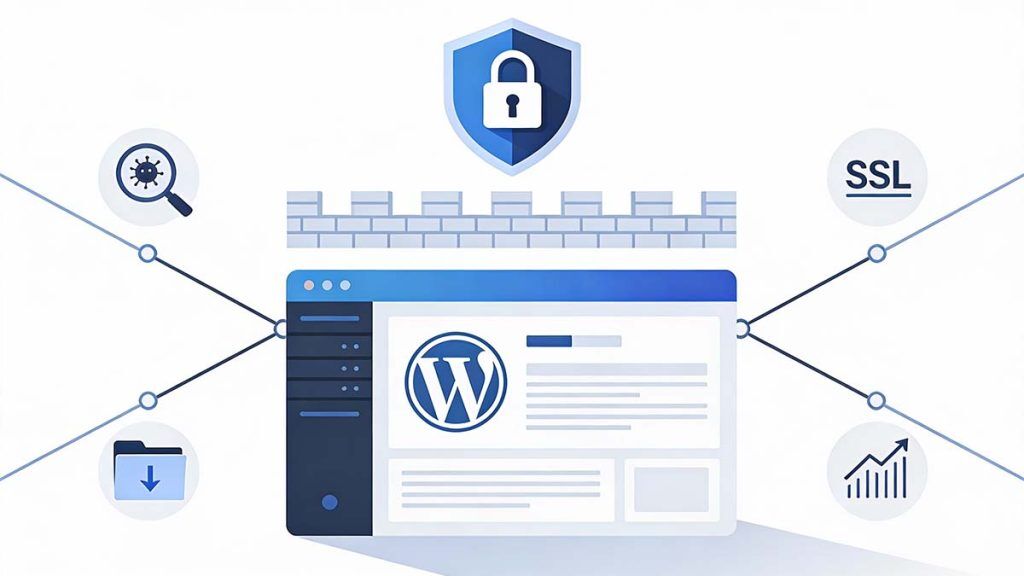
Not all web hosting is created equal when it comes to security. Your choice of host is the bedrock for your website’s safety-if your server isn’t protected, you’re building on sand. Reliable WordPress hosts offer built-in protection, expert support, and features that go beyond what you can set up on your own.
This section explores what makes a host truly secure and which features you should insist upon. Beyond hosting, it explains why extra layers like SSL certificates and firewalls aren’t fancy extras-they’re security essentials for every modern site.
Whether you’re setting up a new website or thinking of switching providers, knowing what to look for in a host can save you time, money, and stress down the road. The tools and tips here will help make sure you’re getting the best protection possible for your site and your visitors.
Pick WordPress Hosting With Security Built In
- Look for managed updates: Managed WordPress hosts take care of updates for the core, themes, and plugins, meaning you’re less likely to fall behind and get caught out by known vulnerabilities.
- Insist on malware scanning and backups: A secure hosting provider checks your site for threats regularly and keeps recent backups ready to restore if things go pear-shaped.
- Evaluate support and isolation: Good hosts offer fast support and isolate your site from others (especially on shared hosting), so you don’t get caught up in someone else’s security mess.
- Beware of cheap, unknown hosts: Skimping on hosting increases your risk. Choose well-known companies with a reputation for WordPress security.
Add An SSL Certificate And Use Secure Connections
- Get an SSL certificate (HTTPS): SSL encrypts data moving between your site and your visitors, protecting passwords, payment info, and personal data from snoopers.
- Set your site to always use HTTPS: Many hosts now offer free SSL certificates via Let’s Encrypt. After adding SSL, configure your site to use HTTPS everywhere, not just on login pages or checkouts.
- Improve trust and search rankings: Not only does SSL safeguard your customers, it adds a padlock to your site’s address bar. Google also gives a boost to secure sites in search results.
Enable A Firewall To Block Threats Before They Reach Your Site
- Set up a web application firewall (WAF): WAFs screen out malicious traffic and hacking attempts before they reach your website, acting like a virtual bouncer.
- Choose the right firewall for your setup: You can use a firewall included in plugins like Wordfence, or opt for a cloud-based option with your host or CDN.
- Protect against DDoS and brute force attacks: Firewalls are particularly good at stopping distributed denial of service (DDoS) attacks and bot-driven login attempts that can overwhelm your site or take it offline.
Ongoing Maintenance And Good User Management
Securing your website isn’t a “set and forget” job. It’s an ongoing process, built around tidy routines and careful user management. Hackers are always looking for easy targets-sites with out-of-date add-ons, sloppy permissions, or users with too much power.
This section shines a light on how to keep your WordPress site “spring cleaned” all year round. Managing user roles stops untrusted people changing things they shouldn’t, and clearing old or unused plugins and themes means fewer places for vulnerabilities to hide. Tweaking file permissions and blocking hotlinking also keeps your data safe and your server costs down.
Finally, keeping your contact information accurate and staying sharp about phishing scams means you won’t miss vital alerts or get tricked by fake messages. It all adds up to a site that stays safe and sound as your business grows.
Set User Roles Carefully And Remove Unused Plugins Or Themes
- Assign roles with care: Only give admin rights to people you trust completely. Most users should be set as Editors, Authors, or lower, so they can’t accidentally (or deliberately) change critical settings.
- Deactivate and delete unused plugins or themes: Old or unused software can contain vulnerabilities, even if it isn’t active. Go through your site every month or so and clear out anything you no longer need.
- Test before removing active plugins: If you’re unsure, deactivate one at a time and check your site still works before deleting. This keeps things running smoothly without surprise errors.
Set File Permissions And Stop Hotlinking
- Set correct file permissions: Your WordPress files and folders should only be writable by the people who truly need access. In general, set folders to 755 and files to 644 using your hosting control panel or an FTP client.
- Block hotlinking: Add a bit of code to your .htaccess file to stop other sites stealing your images or using your server resources for their own pages.
- Check file integrity regularly: Use security plugins to watch for unauthorised changes or new files suddenly appearing.
Keep Your Email Address Up To Date And Watch For Phishing Scams
- Update your admin email address: Make sure your main WordPress and hosting accounts are linked to a current email address that you check regularly, so you never miss a security alert.
- Be cautious with emails that ask for logins: Most phishing scams pretend to be from your host or WordPress itself. Never click a login link from an unexpected email, and always go direct to your site or hosting panel.
- Ask your security team for help: If you’re unsure about any message or alert, ask your site manager or IT expert to double-check before taking action.
Frequently Asked Questions About WordPress Security
How do hackers usually break into WordPress websites?
Most WordPress hacks happen through outdated plugins, weak passwords, or unsecured login pages. Automated bots scan thousands of sites looking for known security gaps. Once they find one, they try to gain access using brute force attacks or injected malware.
Is WordPress secure by default?
WordPress is secure at its core, but it still needs proper setup. Outdated plugins, poor hosting, and weak user management create risks. With updates, strong passwords, and basic protection in place, WordPress can be very safe for business websites.
Do I really need a security plugin for WordPress?
Yes, a security plugin adds protection you cannot easily manage by hand. It helps block attacks, scan for malware, monitor file changes, and send alerts if something looks wrong. This gives peace of mind, especially for business owners.
What is the most important WordPress security step?
Keeping WordPress website, plugins, and themes fully updated is the single most important step. Most hacks rely on known flaws in old software. Automatic updates close those gaps before attackers can exploit them.
How can I stop brute force attacks on my WordPress login page?
You can limit login attempts, hide the default login URL, and use a firewall. Adding two factor authentication also makes brute force attacks pointless, even if a password is guessed.
Should I disable XML-RPC in WordPress?
If you do not use apps that rely on XML-RPC, it is best to disable it. Hackers often abuse XML-RPC for login attacks and traffic floods. Turning it off removes a common entry point.
What should I do if my WordPress site gets hacked?
Act quickly. Take the site offline if needed, scan for malware, restore a clean backup, and change all passwords. Then update everything and close the security gap that allowed the break-in.
How often should I back up my WordPress website?
Business websites should be backed up daily or in real time. Smaller sites can often manage with weekly backups. Always store backups off-site so they stay safe if your hosting is compromised.
Does my web hosting provider affect WordPress security?
Yes, hosting plays a huge role. Secure WordPress hosts provide malware scanning, server isolation, backups, and fast support. Cheap or unknown hosts often lack these protections and increase risk.
Why is SSL important for WordPress security?
SSL encrypts data between your site and visitors. It protects passwords, contact forms, and payment details. It also builds trust and helps your site perform better in Google search results.
Can too many plugins make WordPress less secure?
Yes, unused or poorly maintained plugins increase risk. Even inactive plugins can contain security holes. Regularly remove anything you no longer need and only install trusted plugins.
How should I manage WordPress user roles safely?
Only trusted users should have admin access. Most users should be Editors or Authors. Limiting permissions reduces the chance of accidental changes or misuse if an account is compromised.
Are strong passwords really that important?
Absolutely. Weak passwords are still one of the top reasons WordPress sites get hacked. Use long, unique passwords and a password manager to avoid reusing the same details.
Can small WordPress sites be targeted by hackers?
Yes. Hackers use automated tools that target all sites, not just big ones. Small business and personal sites are often hit because they are easier to break into when security is ignored.
How can I tell if my WordPress site has been compromised?
Warning signs include strange redirects, unknown admin users, slow performance, or alerts from Google or your host. Regular monitoring and security scans help catch issues early.



